
Applying a theme
A theme controls the look and feel of the whole email. Change it on the Themes tab or on the canvas, and save your own themes to reuse later.
What is a theme?
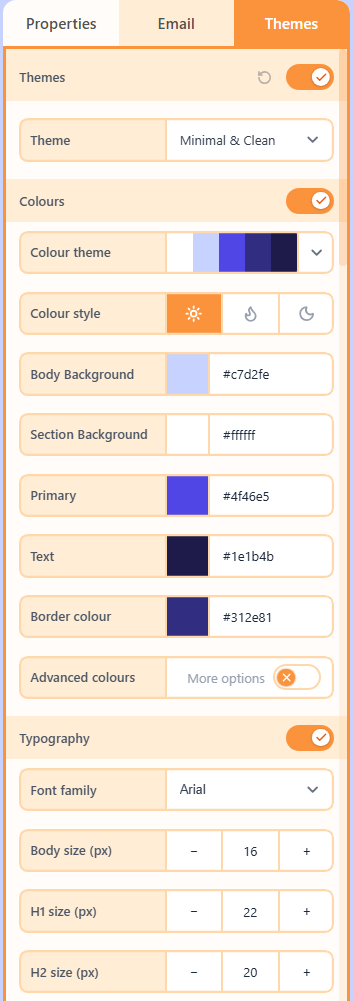
A theme is how you control the look and feel of the whole email at once: colours, fonts, spacing, buttons, and borders. Pick a different theme or palette and the canvas updates instantly, so you can try styles without restyling every block.
You can also change a theme from the Theme properties. On the Themes tab, adjust colours, fonts, spacing, and the other categories while you stay on that theme. On the canvas, change a block’s properties when you want one piece to look different. That field stops following the theme so your edit stays put.
Turn Colours, Typography, Layout, Buttons, and Borders on or off independently. When the look is right, use Save as New Theme on the Themes tab to keep it. Your themes appear under Library → Theme so you can apply them to later emails.
How to apply a theme
- Open the Themes tab.
- Enable Apply theme.
- Switch Colours, Typography, Layout, Buttons, and Borders independently.
Related
Still need help?
Contact Support and we will get back to you.
Feedback or suggestions?
Report a bug or share an idea.