
Graphic Text block
Graphic Text is wording drawn in a Google Font, then exported as a PNG so every inbox shows the same letters. You can add outline or shadow presets, a background image, and an optional CTA chip.
What is Graphic Text?
Graphic Text is wording drawn in a Google Font, then exported as a PNG so every inbox shows the same letters. You can add outline or shadow presets, a background image, and an optional CTA chip.
Use Graphic Text for display headlines that need a font most inboxes cannot show. Use Heading or Text when the words should stay selectable, searchable copy.
Why use Graphic Text?
The main reason is so the font looks the same in every inbox. Graphic Text bakes your wording into a PNG, so recipients see the exact Google Font you picked, not a substitute typeface.
On a Heading or Text block you can pick a Google Font as well. Many inboxes cannot load those fonts, so they fall back to a web-safe stand-in such as Arial or Georgia. Script and display fonts change the most.
Use Graphic Text for display headlines and any line where the typeface is part of the design. Keep Heading or Text for body copy that should stay selectable and searchable.
How to add
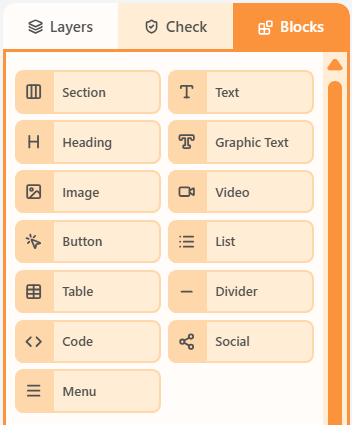
- Open the Blocks tab in the left sidebar.
- Drag Graphic Text into a column on the canvas.
- Click the block to edit its content and properties.
Properties
Select the Graphic Text block, then open the Properties tab on the right. These controls change how this block looks and behaves.
| Property | Options | Used for |
|---|---|---|
| Content | Plain text and a Google Font | The wording baked into the PNG |
| Text styles | Outline and shadow presets | Decorative treatment on the letters |
| Background | Image, tint, and frame (baked into the PNG) | What sits behind the letters |
| CTA chip | Optional label, position, and colours | A small call to action on the graphic |
| Size and link | Width, auto or fixed height, optional href | How large the graphic is and where a tap goes |
| Alignment | Left, centre, or right | Where the block sits in the column |
| Background colour | Theme colour or a custom swatch | Fill behind the block |
| Content padding | px, or More options per side | Space around the block in the column |
| Border | On/off, width, colour, style, and sides | Outline around the block |
| Corner radius | A single px value | Round the block corners (email clients use one radius) |
| Hide | Off, mobile, or desktop | Keep the block off one breakpoint |
Graphic Text is baked to a PNG for inbox compatibility. It does not import back from compiled HTML.
Related
Still need help?
Contact Support and we will get back to you.
Feedback or suggestions?
Report a bug or share an idea.