
Social block
A Social block is a row or column of social icons. Each item has a platform, URL, and optional label so recipients can open your profiles.
What is a Social block?
A Social block is a row or column of social icons. Each item has a platform, URL, and optional label so recipients can open your profiles.
Use Social in a footer or about section. Use Menu when the links are text navigation (Home, Shop, Contact) rather than social networks.
How to add
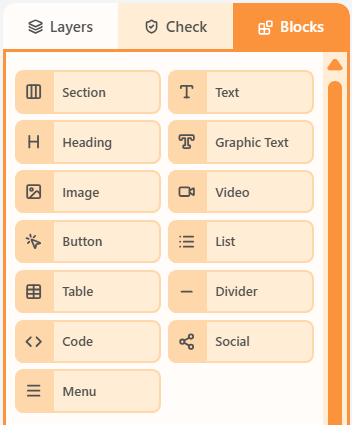
- Open the Blocks tab in the left sidebar.
- Drag Social into a column on the canvas.
- Click the block to edit its content and properties.
Properties
Select the Social block, then open the Properties tab on the right. These controls change how this block looks and behaves.
| Property | Options | Used for |
|---|---|---|
| Items | Platform, URL, title, alt, label, and per-item icon style | Which networks appear and where they go |
| Icon style | Official or solid, monochrome tone, size, and spacing | How the icons look as a set |
| Layout | Horizontal or vertical; optional labels and label typography | Row vs stack, and whether names sit next to icons |
| Alignment | Left, centre, or right | Where the block sits in the column |
| Background colour | Theme colour or a custom swatch | Fill behind the block |
| Content padding | px, or More options per side | Space around the block in the column |
| Border | On/off, width, colour, style, and sides | Outline around the block |
| Corner radius | A single px value | Round the block corners (email clients use one radius) |
| Hide | Off, mobile, or desktop | Keep the block off one breakpoint |
Related
Blocks paletteThe Blocks palette is the list of things you can drag onto the canvas: Section plus every content block.All propertiesThis index lists shared property groups and the articles that document each block’s own fields.Sections and columnsA section is a horizontal row. Columns sit inside that row and hold the blocks recipients see.
Still need help?
Contact Support and we will get back to you.
Email support@openly.email
Feedback or suggestions?
Report a bug or share an idea.