AI Email Wizard
Create a complete email with the AI Email Wizard
Walk through Layout, Images, and Copy to assemble a full email. Then open the result in Build and edit every detail.
Free while we're in beta. No credit card.
01
A guided Layout, Images, and Copy workflow
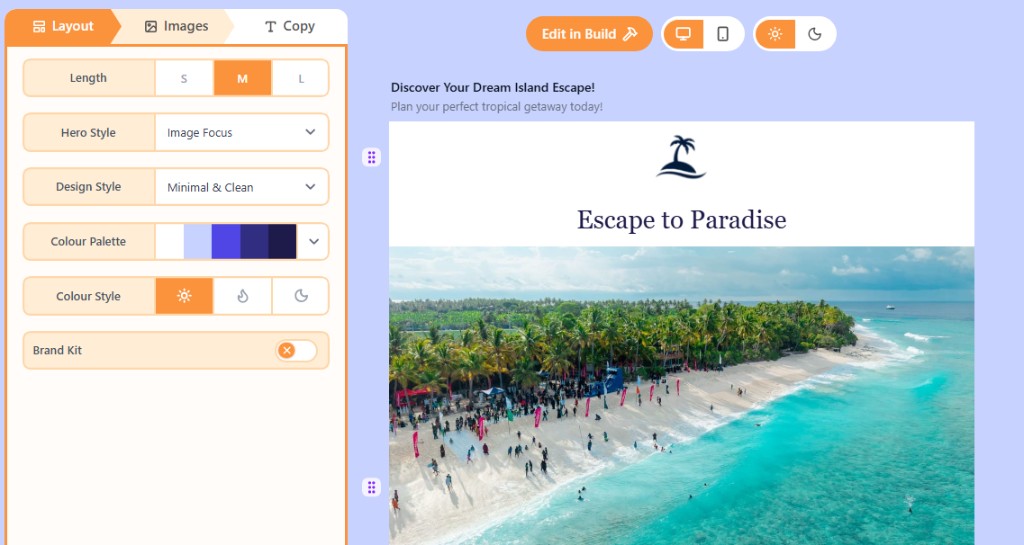
Switch between three tabs at any time. Layout sets the structure and look. Images fills photo, logo, and icon slots. Copy writes the wording, including a subject line and preheader. The live preview stays on the right so you can see the email come together.
02
Choose the layout, palette, and Brand Kit
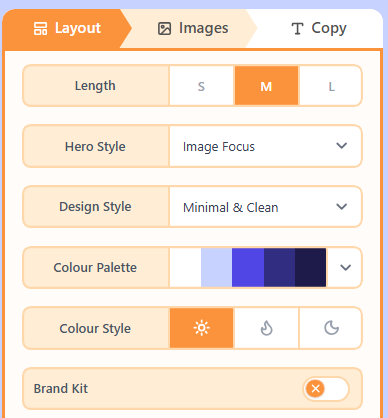
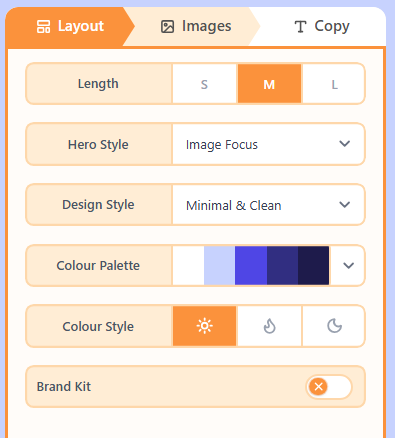
On Layout, pick Short, Medium, or Long, then choose a hero style, design style, colour palette, colour style, and image frames. The structure updates as you change these settings. Enable Brand Kit with a website to pull brand colours and a site logo before Images runs.
03
Fill images from photos, AI, or Brand Kit
On Images, generate or assign pictures using Auto, Photos, or AI. The tab fills photo, logo, and icon slots in the draft. Keep the slots you like, replace the rest, and regenerate until the preview looks right.
04
Write the copy, then finish in Build
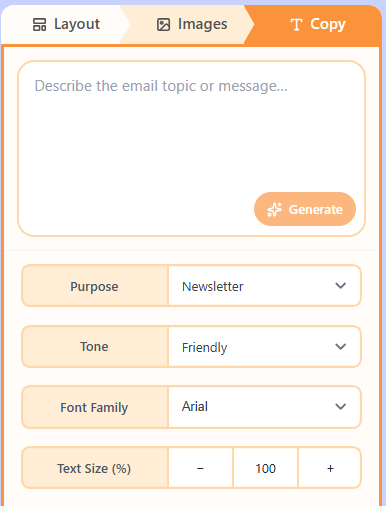
Give a brief, pick a purpose and tone, then Generate. Copy fills the existing layout and can set font family and text size. When the draft looks right, choose Edit in Build to change spacing, links, and every block yourself.
Compare
Wizard or One Shot?
Both create a complete email draft you can finish in Build. Choose the flow that matches how you like to work.
FAQ
Frequently asked questions
- What does the AI Email Wizard do?
- The Wizard is a guided AI flow with Layout, Images, and Copy tabs. You choose the structure and theme, then fill images and wording. When the draft looks right, you can open it in Build.
- Can I use my own brand colours and logo?
- Yes. Enable Brand Kit on the Layout tab and enter a website. Openly can pull brand colours and a site logo before the Images tab fills the remaining slots.
- Can I edit the email after I create it?
- Yes. Edit in Build opens the full drag-and-drop canvas, where you can change every block, link, and spacing detail.
- Is the Wizard free?
- Openly is free while we are in beta, and you can start without a credit card.